Enable and configure Anti-Malware
To use the Deep Security Anti-Malware module, perform the following:
- Enable the Anti-Malware module.
- Select the types of scans to run.
- Configure scan exclusions
- Configure multiple scan list exclusions and inclusion
- Update Deep Security about the latest threats
- Review the information provided in Configure malware scans and exclusions and refine the anti-malware scan behavior
Most anti-malware settings should be configured either for each individual computer or in a policy that applies to multiple computers (for example, applicable to all Windows 2008 Servers). To streamline the management, configure the settings in the policy (as opposed to individual computers) wherever possible. For more information, see Policies, inheritance, and overrides.
CPU usage and RAM usage varies by your anti-malware configuration. To optimize anti-malware performance on Deep Security Agent, see Improve Anti-Malware performance.
For for information, see About Anti-Malware.
Enable the Anti-Malware module
- Go to Policies.
- Double-click the policy for which you want to enable Anti-Malware.
- Go to Anti-Malware > General.
- From Anti-Malware State, select On.
- Click Save.
Select the types of scans to run
When anti-malware is enabled, do the following to inform Deep Security about the type of scans it should run (see Types of malware scans):
- Go to Policies.
- Double-click the policy to configure.
- Click Anti-Malware > General.
- Enable or disable each type of scan:
- To perform the scan using default settings, select Default.
- To perform the scan using a malware scan configuration that you can customize, select a malware scan configuration.
- To disable the scan, for the malware scan configuration select No Configuration.
- Click Save.
Trend Micro recommends that you configure Deep Security to perform weekly scheduled scans on all protected servers. You can do this using scheduled tasks. See Schedule Deep Security to perform tasks.
Configure scan exclusions
To reduce scanning time and minimize the use of computing resources, you can configure Deep Security malware scans to exclude specific folders, files, and file types from all types of scans. You can also exclude process image files from real-time malware scans that are run on Windows servers.
All of these exclusions are specified by selecting exclusion lists on the Exclusions tab of the Malware Scan Configuration editor. See Specify the files to scan.
If any performance-related issues are experienced when Deep Security anti-malware protection is enabled, you can use exclusions to help troubleshoot these issues by excluding specific folders or files from scanning.
Configure multiple scan list exclusions and inclusion
After using the properties of the malware scan configuration to configure scan exclusions and inclusions for one list for a specific list type, you may choose to perform additional configurations. That is, Deep Security enables you to configure multiple scan list exclusions and inclusion at the policy level. It extends to the list specified in the malware scan configuration. Note that you must enable and configure the list for the scan list type in the malware scan configuration first before using multiple scan list.
The All directories setting disables the directory lists from multi-list scan inclusions. The All files and File types that are identified by IntelliScan settings disable the file extension lists from multi-list scan inclusions.
- Go to Policies.
- Double-click the policy to configure.
- Go to Anti-Malware > Exclusions.
- Select the type of scan to which you want to add the exclusions: Real-Time, Scheduled, or Manual. You can configure the following lists for these scan types:
- File list
- Directory list
- File extension list
- Process image file list (for real-time scan only)
- To add, create, or delete lists, do the following:
- To add all inherited lists, select Use inherited list.
- To add non-inherited lists, select the lists and click Add.
- To create a new list, select New. For more information, see Create a list of files for use in policies.
- To delete a non-inherited list, select its garbage can icon. To remove inherited lists, you must deselect Use inherited lists.
- Click Save.
When done, scan list inclusions or exclusions are combined using any added scan lists, as well as any added file lists, directory lists, and file extension lists from computers or policies. Duplicates between lists do not interfere with the behavior of inclusions and exclusions.
Update Deep Security about the latest threats
To remain effective against new viruses and exploits, Deep Security Agents need to be able to download the latest software and security update packages from Trend Micro or indirectly, from your own Relay. These packages contain threat definitions and patterns. Relay-enabled agents, organized into relay groups (also managed and configured by the Deep Security Manager) retrieve security updates from Trend Micro, and then distribute them to other agents and appliances.
- Go to Administration > System Settings > Updates.
- Configure Deep Security's ability to retrieve security updates from Trend Micro. Make sure you have at least one relay-enabled agent, and it is assigned to the appropriate agents and appliances.
To determine if a Deep Security Agent is a relay, next to a computer, click Preview.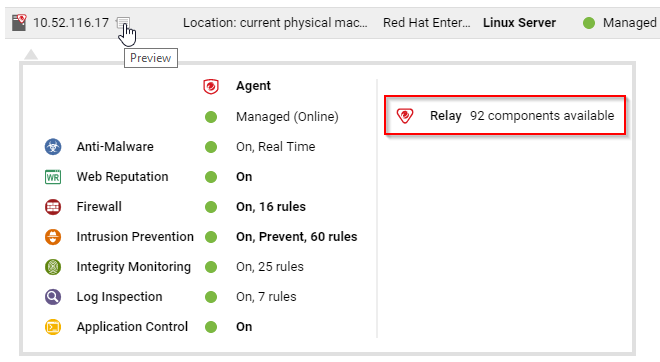
- Go to Administration > Scheduled Tasks.
- Verify that there is a scheduled task to regularly download available updates for both security and software updates.